Once the algorithm finds potential improvements over the Control, a new Top Page will show up next to the Control in the “App Page Preview” section of the App Overview page:
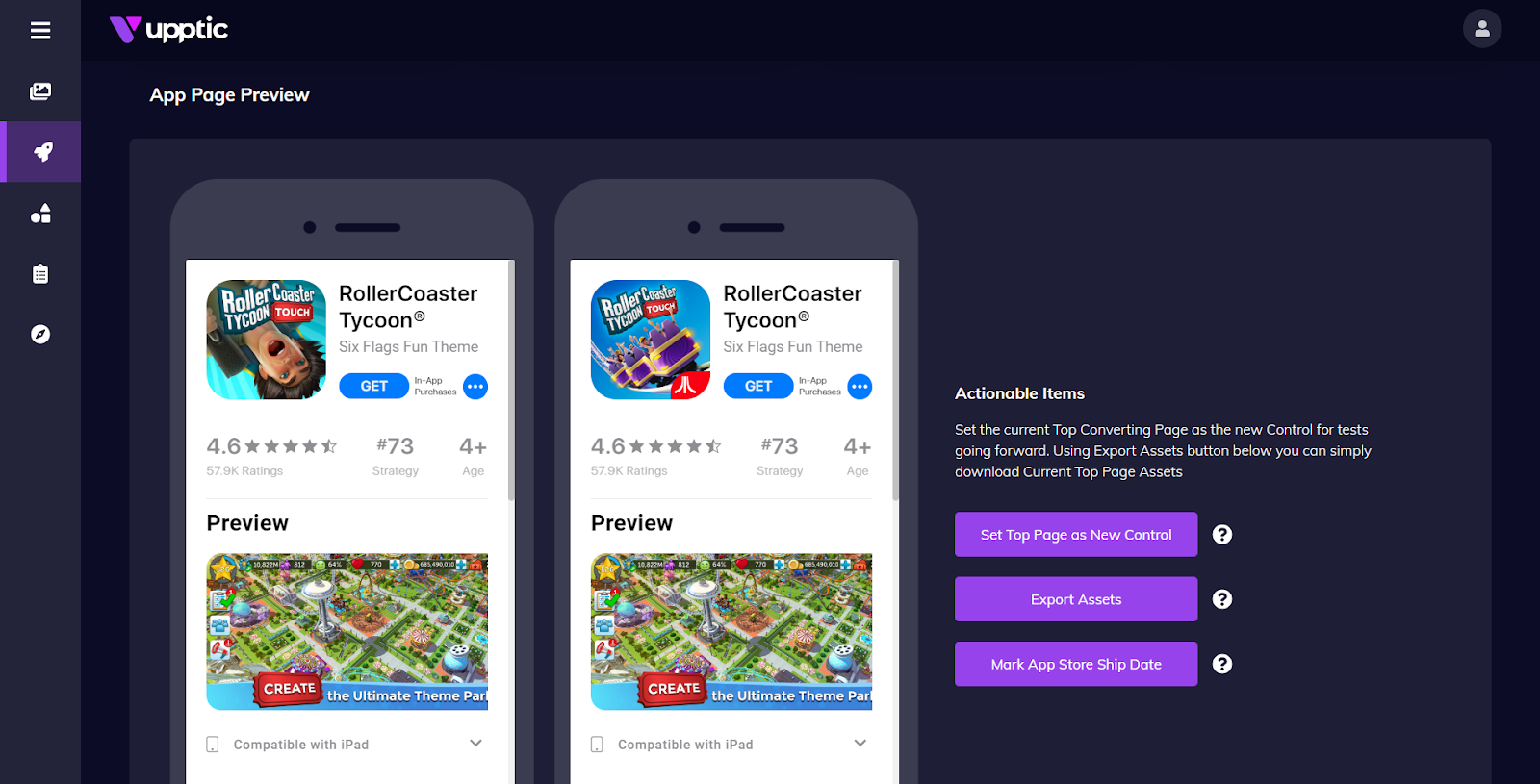
You can scroll the scrollbar on the right side of each to get a preview or click on them to open them in new tabs.
At any point, the page that displays on the right of the Control is the best performing non-Control page the algorithm has discovered. You don’t have to do anything with this. You can continue to upload more creatives and do more testing, and Upptic will continuously attempt to further improve this page.
When you decide that the potential conversion lift over Control is significant enough, you may want to implement the improved page live to the app store. At this point, you would click the “Export Assets” button, which gives you an easy way to deliver the winning assets to your development team to ship the assets live to the app store.
Apple or Google may take some time to approve your changes. Once approved, you can come back to this page and click “Mark App Store Ship Date”. This will mark in the reporting which day the changes were made live so you can monitor performance after that time. You should then also click “Set Top Page as New Control”. This will set the new page as the Control to be iterated upon going forward (the BCR would also be updated accordingly). And the cycle starts all over again.